Introduction to the Extrude Tool: One of Blender's Coolest Tools!
Start with a simple shape and add geometry using Blender’s Extrude tool. This guide explains faces, edges and vertices before showing what happens when you extrude them.
In the Complete Blender Creator Course video, Extruding in Blender, our instructor Michael Bridges teaches us how to use the Extrude Tool! This is an awesome tool, and you can use it to extrude faces, edges, and vertices. When you extrude you make new geometry, which you can move around, shape, etc.
This tool is very versatile, because it allows you to change the shape of the objects you are working with. For example, you can take a primitive, such as a cylinder, cube, sphere, or plane, and add new geometry to make a complex object. So, let’s get creative and learn how to use this cool tool!
Let’s go over some basic geometry definitions, which we will be using in Blender.
What is a Face?
A face is the surface of an object. For instance, a cube has 6 sides, so it has 6 flat surfaces called faces. In geometry, we call faces planes. Please see picture below:
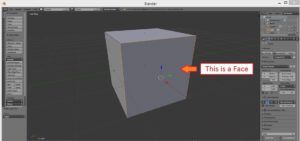
What is an edge?
Edges are the lines, which form where faces join. In geometry edges are called lines. Please see picture below:
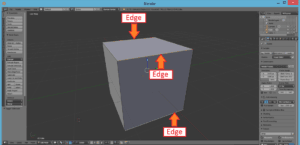
What is a vertex?
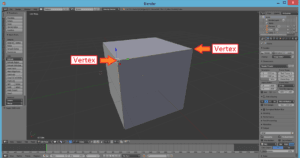
A vertex forms where the ends of two or more edges converge. In geometry a vertex is sometimes called a point. Please see picture below:
Extruding Faces
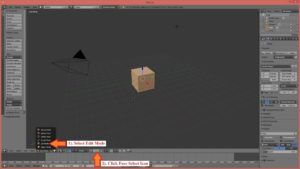
- Select Edit Mode, by clicking on the Options Box at the bottom-left of your screen. It’s important to have Edit Mode selected, or you won’t be able to select the faces, so that you can extrude them.
- Click on the Face Select Icon, which is located at the bottom of your screen.
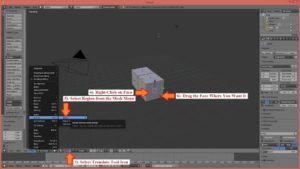
- Select the Translate Tool Icon, at the bottom of the screen,
- Right-Click on the face that you want to extrude, and if you want to select multiple faces, hold down the Shift key while clicking on more than one face.
- Click on the Mesh Menu, which is located at the bottom-left of your screen. Scroll over Extrude and click on Region.
- Click and drag the face or faces where you want them to be. You can also press the short-cut key E, to Extrude.
Please see pictures below for the details about these instructions: