Godot UI: Build Reactive, Animated Interfaces
Build a UI with the polish and animation of a shipped game, complete with hover states, transitions and a theme you can reuse anywhere.
Press Start on Your UI
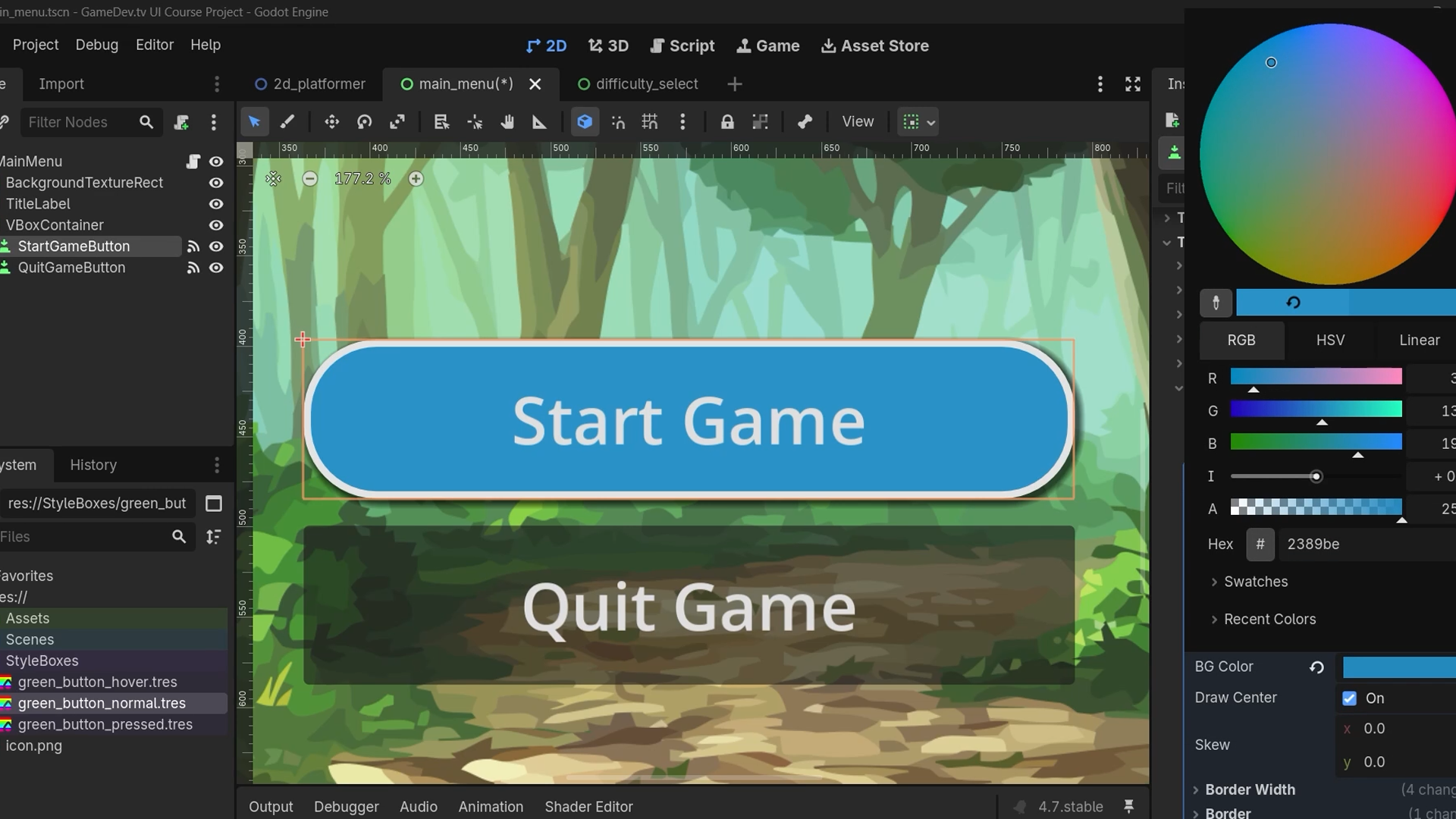
Build a Menu That Scales to Any Aspect Ratio.
Godot's anchors look simple, until your UI stops scaling. Resize the window and buttons overlap, menus clip off-screen, text spills out of its box. This course starts by building a real main menu that hooks up to your code and scales cleanly across every aspect ratio, using anchors the way they're meant to be used.
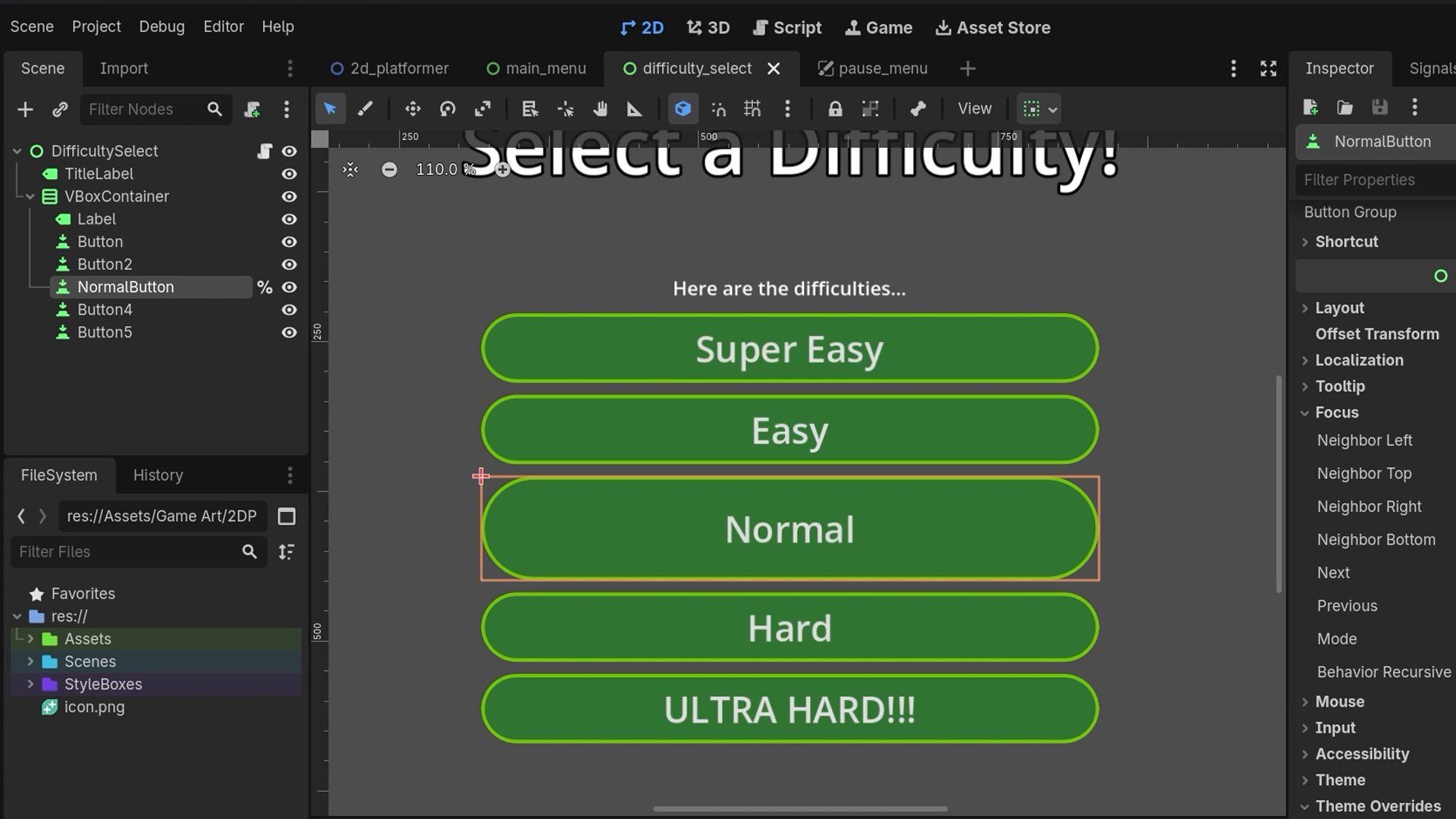
Structure Your Menus With Containers That Work.
There's a container for every kind of layout headache. Once your main menu scales properly, the real structuring work begins. You'll use VBoxContainers, HBoxContainers, GridContainers and more to build layouts that hold together no matter what's inside them, from a simple pause menu to a full inventory screen. No more having to manually reposition buttons every time you add another option.
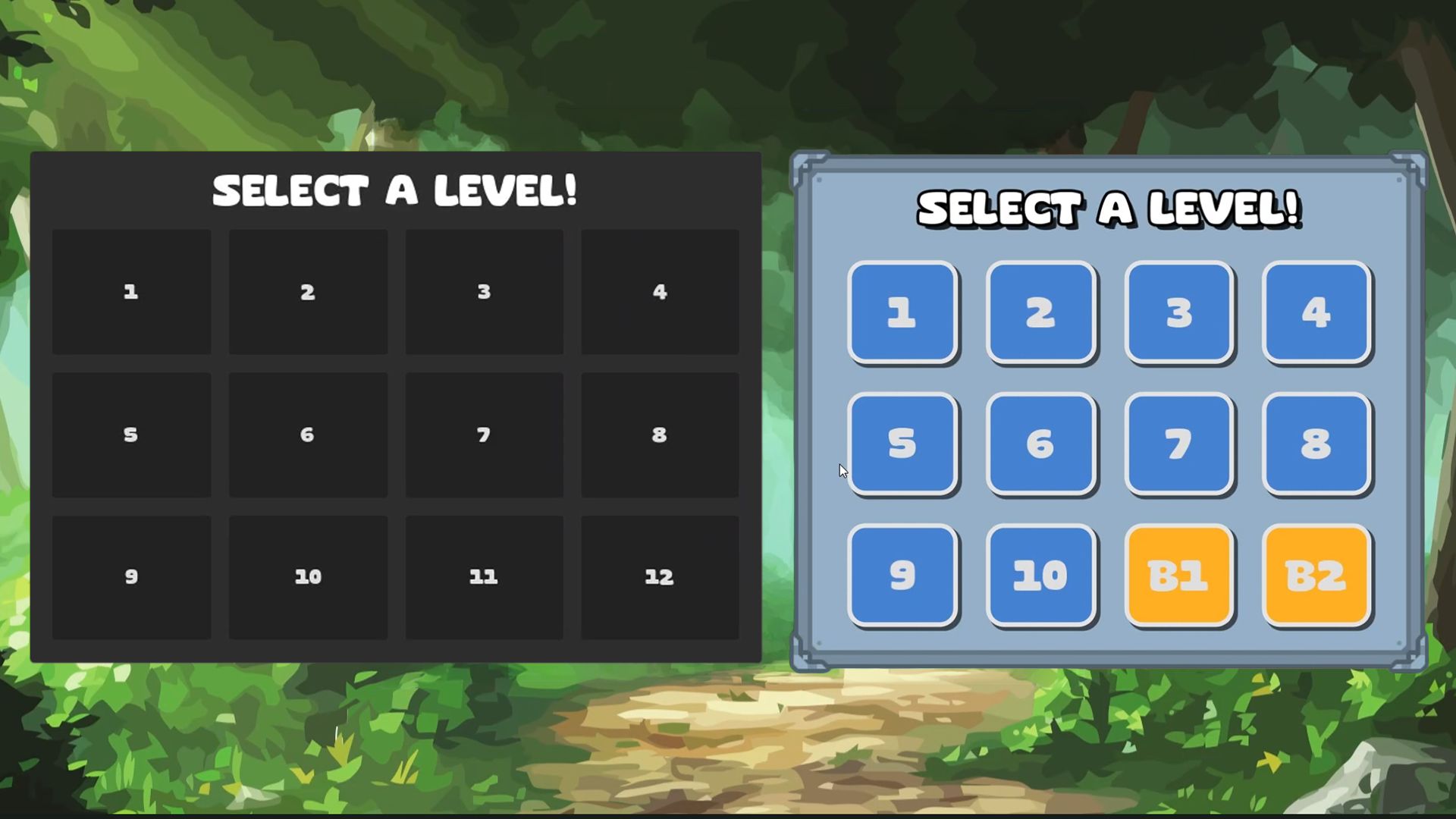
Style Every Menu Until It Looks Finished.
A working menu and a finished-looking menu are not the same. StyleBoxes and Nine Patch textures turn plain panels and buttons into something that looks designed, not default. You'll add custom fonts and font variants so your text stops looking like a placeholder, and animate text with Rich Text Labels and BBCode for dialogue boxes and reactive feedback. It's the difference between a UI that works and one that looks like it shipped with the game.
Restyle an Entire Scene With a Single Resource.
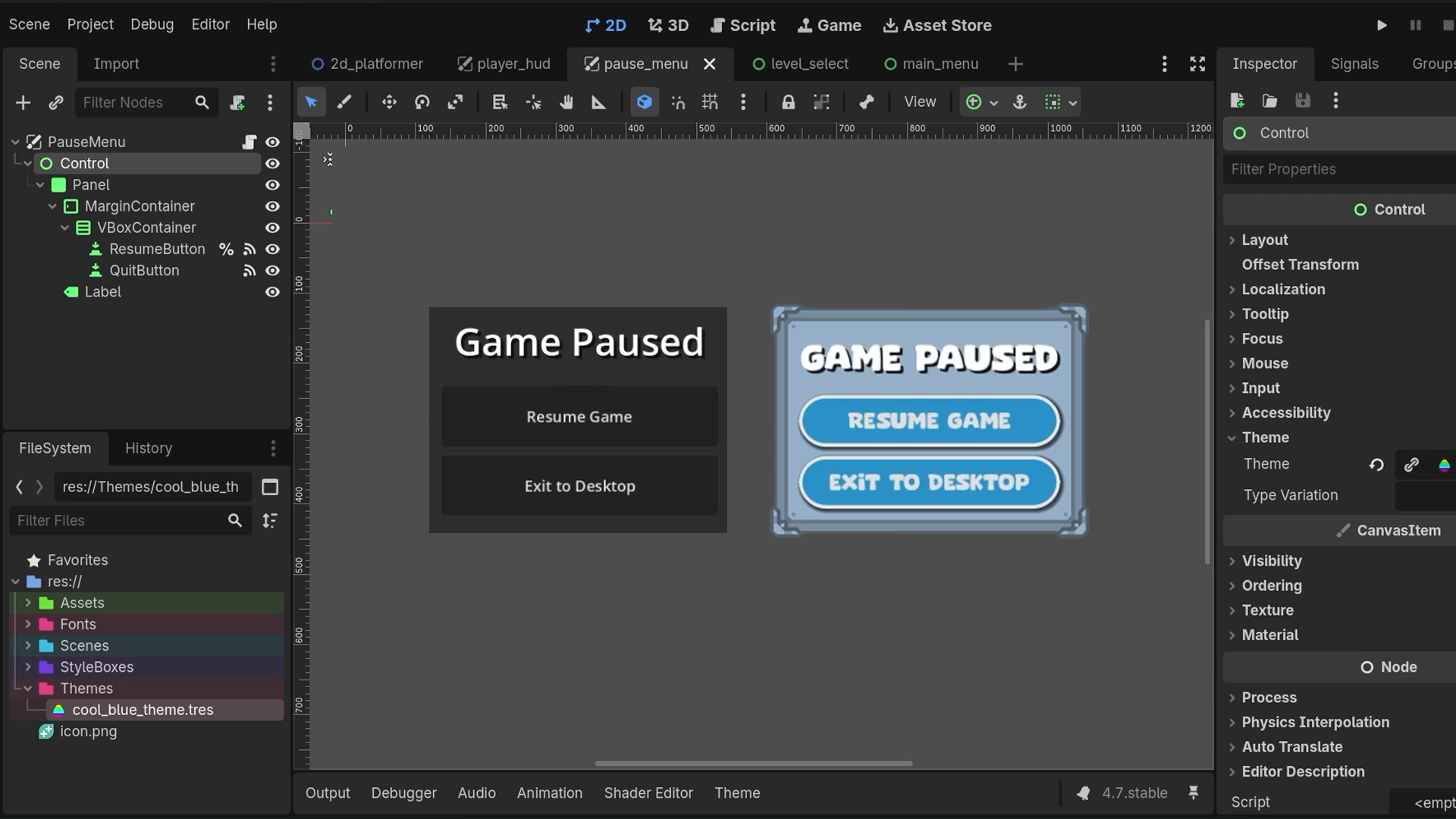
One Theme resource, and your whole UI changes instantly. Godot's Theme resource and Theme Type Variations let you reskin every menu in your game from one place, no hunting through individual nodes to change a colour or a font. Build a variation for your pause menu, another for your HUD, and swap between them without touching a single StyleBox twice. It's the fastest way to keep a consistent look across a project with dozens of screens.
Animate Your Transitions So Nothing Feels Static.
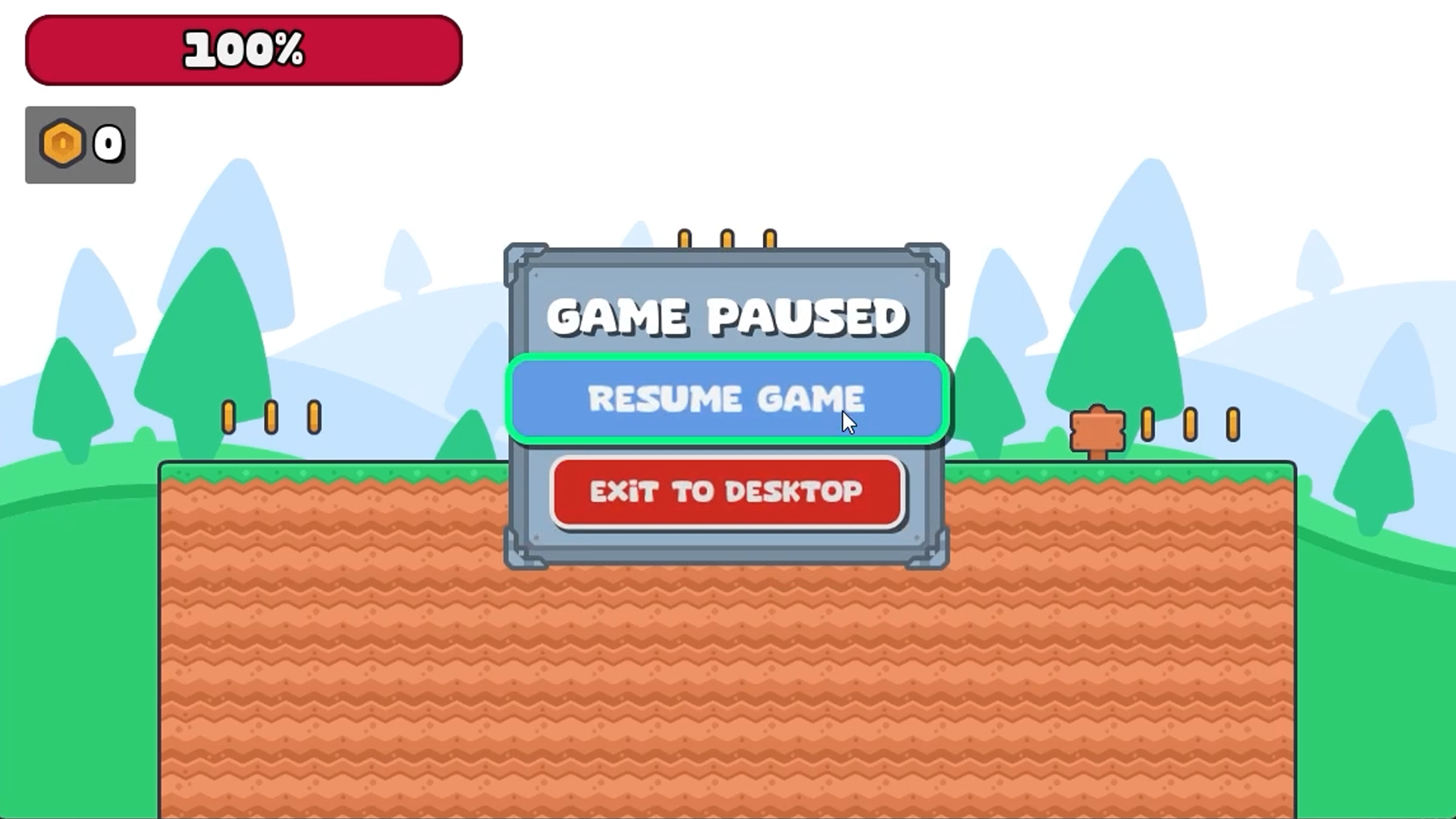
Tweens and Offset Transforms turn a static menu into a living one. You'll animate button hovers, menu transitions and screen changes with Tweens and Offset Transforms, the same tools that give menus their snap and polish. By the end you'll have built a main menu, a pause menu, a player HUD and a level select screen, all fully playable, themed and animated. You'll know exactly how to make any UI you build after this feel finished, not just functional.
What you’ll learn
Build a working main menu that scales cleanly across any aspect ratio using anchors.
Structure your UI with containers so nothing breaks when the screen size changes.
Theme your menus with StyleBoxes and Nine Patch textures for a proper, polished look.
Add custom fonts and font variants that make your UI text actually stand out.
Bring text to life with Rich Text Labels and BBCode for dialogue and reactive UI.
Use Godot's Theme resource and Theme Type Variations to restyle a whole scene at once.
Animate every menu with Tweens and Offset Transforms for that shipped-game feel.
Create a main menu, pause menu, HUD and level select screen, all fully playable.
30 Day Money-Back Guarantee
100% refund, no questions asked.Lifetime Access
Access your content on any device, at any time.Teaching Support
Never get stuck with our teaching assistants on call.About the course
Ever wanted to build a UI that scales properly, looks polished and reacts the moment your mouse hovers over it? That's exactly what this course gets you doing.
In this course, you'll learn everything you need to build any interface you can imagine, starting with a working main menu that hooks up to your code and scales properly across every aspect ratio using anchors.
From there, you'll structure your UI properly using containers, so your layout holds together no matter the screen size. Once the structure's solid, you'll theme it: StyleBoxes, Nine Patch textures, custom fonts and font variants, all the small details that make a UI look like it belongs in a finished game. You'll even animate text with Rich Text Labels and BBCode.
Then comes Godot's Theme resource and Theme Type Variations, which let you restyle an entire scene in one go. And to finish, you'll animate everything, menus, transitions, hover states, using Tweens and Offset Transforms.
Along the way you'll build a main menu, a pause menu, a player HUD, a level select menu and more, all fully playable and reactive to both mouse and keyboard.
This is an intermediate course, so we're assuming you already know your way around nodes, scenes, variables, functions and signals. That means no time wasted on the basics, just straight into levelling up your UI skills.
By the end, you'll have the confidence to build, theme and animate any UI you can think of.
Jump in and start building.
Curriculum
Instructors

Ahmed Nassef
Hello! I'm Ahmed Nassef, a game developer that is incredibly passionate about making cool experiences and teaching others how to do the same!
It all started when I learned Scratch at the small age of 12. Since then, I've been obsessed with game development! I realized there's nothing cooler than designing my own worlds and stories - creating a fulfilling experience that others can enjoy.
After graduating from Computer Science with honors, I started my career as an indie game developer making fun educational games for children, then moved on to making neat web games and open-source applications. Finally, I became an instructor teaching kids programming and game development - a path that led me here to GameDev.tv!
My hobbies include writing & blogging, playing the piano, reviewing graphic novels, and playing video games (duh)!